R-Studio Emergency Network 9.5 Build 0802 BootCD
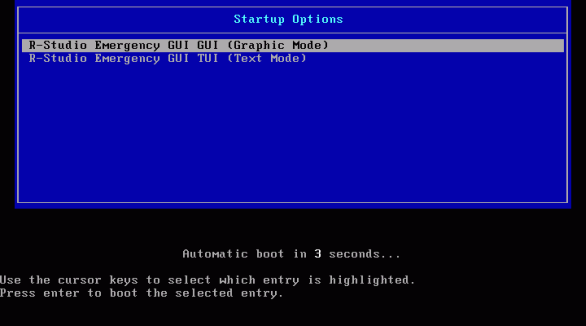
R-Studio Emergency Network 9.5 Build 0802 BootCD
Many computer users have shared the unfortunate experience at least once (but some perhaps twice or - with some really bad luck-even more) of discovering that their computer doesn't start anymore. The computer's hardware seems to be functioning, and the operating system can be restored back from a system recovery disk. But those scary messages tell the user that such a system recovery will destroy all the data - all family photos, movie and music collections, and valuable financial docs could be lost for good.
Well, that could happen, but it won't, thanks to a special procedure called an " emergency file recovery," in which the computer is started from a special startup disk containing a file recovery tool.
R-Studio Emergency is an excellent choice for tackling this procedure under these circumstances. So let's see how R-Studio Emergency could save your endangered files.
To give you step-by-step instructions on how to perform emergency file recovery using R-Studio Emergency, we'll use the case of a notebook, as a typical example. The notebook's hardware is simple: a 10GB hard drive equally partitioned into two logical disks, C: (the system one, NTFS-formatted; its label is SYSTEM) and D: (FAT32 formatted; its label is DATA). The system logical disk appears damaged, and the computer cannot start.
Hard Drive Inspection
The goal of inspecting the hard drive is to make sure that it doesn't have any hardware-based problems. Symptoms that a hard drive has hardware problems:
- Your system does not recognize the device anymore, or it appears under an unusual name.
- The hard drive makes unusual noises, clicks, starts too slowly.
- Bad blocks constantly appear on your hard drive.
- SMART inspecting programs report a severe hardware failure event.
Important! If you believe that the hard drive in the computer is malfunctioning, use R-Studio Emergency to create an image of the entire hard drive. DO NOT DO ANYTHING ELSE WITH IT BY YOURSELF ANYMORE! Don't try to run a scan or recovery procedure. Don't try to use some other data recovery software. Remember, tampering with a drive in this condition will surely inflict more damage to your files. At best, you'll have to pay extra money to a professional data recovery service. At worst, you'll lose all your data for good. Bring the drive to qualified data recovery professionals. They have special equipment, software, and, most important, the required skills to work with such drives.
Moreover, it is a good practice to always create images and recover files from them, even if the hard drive and other hardware work normally. This keeps your data safe from accidental data corruption. See the Working with Images section for more information.
If there are no problems detected, we can go further to actual file recovery.
Preparation for File Recovery
We'll need some additional material for data recovery:
1. A computer connected to the Internet. We'll use it to create R-Studio Emergency startup disks and obtain a computer's Activation Code to register R-Studio Emergency. If this other computer is on the same local network as the damaged computer, it can be used as a place to store recovered files. Below we'll explain how.
2. A place to store recovered files and other information like scan info and disk images. We can use:
- A formatted USB flash drive. This is the best choice if its size is enough to store all recovered files.
- An external USB hard drive formatted as NTFS or Ext2/3fs.
Please note:
a. An NTFS hard drive should be properly disconnected from a Windows computer through the Safely Remove Hardware icon on the tray menu rather than by simply unplugging it from the computer. If you haven't properly disconnected the USB drive, R-Studio Emergency will see it as a read-only disk. To correct the situation, you may connect the USB disk to a Windows computer and properly disconnect it using the Safely Remove Hardware icon on the system tray menu.
Also, non-Windows computers may see NTFS disks as read-only or not be able to read files from that disk at all.
b. An Ext2/3fs hard drive requires some additional third-party drivers to read data on it if it's connected to a non-Linux computer, like a Windows or a Mac machine. - A network computer. It should have an accessible network share. Below we'll explain how to connect this share as a network drive in R-Studio Emergency.
And always remember the most important rule: NEVER TRY TO SAVE RECOVERED FILES/FOLDERS ON THE SAME LOGICAL DISK WHERE THEY RESIDE!!! Or you may obtain unpredictable results and lose all your data.
3. If you already purchased R-Studio, the order information such as Order ID, your e-mail, R-Studio registration key, etc. You may find this information in the e-mails you received upon purchasing R-Studio.
Even before registering, you can estimate the chances that R-Studio Emergency will be able to recover your files successfully, and purchase it later. Unregistered R-Studio Emergency can perform any data recovery operation (including wiping a disk or partition), except working on network and saving recovered files. But you may preview files to estimate the chances of recovering them successfully.
Creating R-Studio Emergency Startup Disks
If your computer has a CD/DVD recording drive, you should download R-Studio Emergency GUI ISO Image for Macintosh, UNIX, Linux, and Windows users (Intel based) and create the startup CD/DVD disc using any CD/DVD-burning software.
Windows users may also download R-Studio Emergency Startup Media Creator to install it and create a startup CD/DVD disc, a startup disk on FAT/FAT32-formatted removable media (including a USB flash memory disk), or two floppy disks. The creation process is simple, and you may find detailed instructions in R-Studio online help: R-Studio Emergency.